Building a professional website no longer requires knowing how to code. Learn how to create a no-code website using WordPress today!
In 2026, WordPress powers a huge share of the web and remains one of the most flexible, powerful, and beginner-friendly platforms for creating blogs, business sites, portfolios, and even online stores entirely without writing a single line of code.
This comprehensive guide walks you through every step of creating a no-code WordPress website, from choosing a domain and hosting to designing pages with drag-and-drop tools, adding essential features, optimizing for search engines, and launching.
Follow these steps and you can have a fully functional site live in a weekend (or even an afternoon). How to Create a No-Code Website Using WordPress
Why Choose WordPress for a No-Code Website?

WordPress is free, open-source software (WordPress.org) that you install on your own hosting. It differs from the hosted service WordPress.com, though the latter has improved significantly and now allows many plugins and themes on paid plans.
Key advantages of the no-code WordPress approach in 2026:
- Full ownership and control of your site and data
- Thousands of free and premium themes plus plugins
- Built-in block editor (Gutenberg) and Full Site Editing
- Popular visual page builders like Elementor for true drag-and-drop design
- Excellent SEO potential and scalability
- Growing AI assistance for design, content, and management
- Costs as low as a few dollars per month for hosting
You can create almost any type of site without coding:
personal blogs, business brochure sites, portfolios, membership sites, or e-commerce stores with WooCommerce.
Your domain name is your website’s address (e.g., yourbrand.com). How to Create a No-Code Website Using WordPress
Step 1: Choose a Domain Name and Web Hosting
Hosting is the server space where your site files live.
Tips for choosing a domain:
- Keep it short, memorable, and relevant to your brand or niche.
- Prefer .com when possible.
- Use domain registrars or search tools provided by hosts to check availability.
- Typical cost: $10–15 per year.
Recommended hosting for beginners such as Bluehost (WordPress-optimized):
Look for providers offering one-click WordPress installation, free SSL certificates, solid uptime, and good support like Bluehost. Popular options in 2026 include managed WordPress hosts and affordable shared hosts with Softaculous or similar installers. Expect to pay roughly $3–15 per month to start, often with discounts for annual plans and a free domain for the first year.
Many hosts include free SSL (for the padlock and https://), automatic backups, and staging environments highly useful for no-code users.
Step 2: Install WordPress (One-Click Process)
Most quality hosts make this nearly automatic:
- Log into your hosting control panel (cPanel, hPanel, or custom dashboard).
- Find the WordPress installer (often labeled Softaculous, WordPress Manager, or “Install WordPress”).
- Enter your domain, site title, admin username, strong password, and email.
- Click Install.
Installation usually takes under two minutes. You’ll receive login details.
Access your dashboard at yourdomain.com/wp-admin.
Security tip: Never use “admin” as the username.
Choose a strong, unique password and enable two-factor authentication later via a plugin.
Step 3: Get Familiar with the WordPress Dashboard
The admin area is your control center. Key sections include:
- Dashboard – Overview and quick links
- Posts and Pages – Content creation
- Appearance – Themes, menus, Site Editor / Customizer
- Plugins – Add features
- Settings – General site options (title, tagline, timezone, permalinks)
Under Settings → Reading, decide whether to show a static homepage or your latest posts.
Set a static page for most business or portfolio sites.
Update WordPress core, themes, and plugins regularly from the dashboard for security and new features.
Step 4: Choose and Install a Beginner-Friendly Theme.

A theme controls your site’s overall design and layout.
In 2026, prioritize lightweight, responsive (mobile-friendly), and block-editor-compatible themes.
Top free recommendations for no-code beginners:
- Astra – Extremely popular, fast, tons of starter templates for almost any niche
- Kadence – Excellent free header/footer builders and block-focused tools
- Blocksy – Modern, highly customizable free version
- GeneratePress – Super lightweight and fast
- Twenty Twenty-Five (or the current default) – Built-in, fully supports Full Site Editing
How to install A WordPress Theme:
- Go to Appearance → Themes → Add New.
- Search for the theme name.
- Click Install, then Activate.
Many themes offer one-click starter site imports (often via a companion plugin).
Import a template that matches your industry, then customize the content and colors.
This is one of the fastest ways to get a polished look without design skills.
Step 5: Design Your Site with No-Code Tools
WordPress offers multiple no-code design approaches:
Option A: Native Block Editor + Full Site Editing (Recommended starting point)
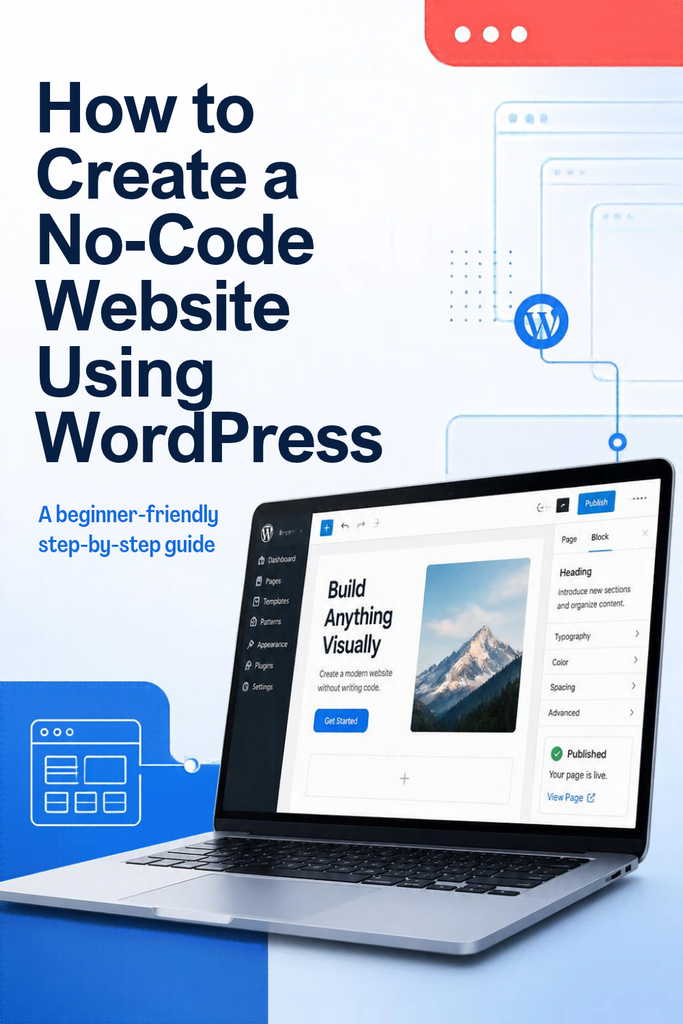
The Gutenberg editor treats every element (paragraph, heading, image, button, columns, gallery) as a “block.” Click the + icon to add blocks, drag to rearrange, and adjust settings in the sidebar.
The Site Editor (Appearance → Editor) lets you visually edit headers, footers, templates, and global styles without code.Option B: Drag-and-Drop Page Builders
For more visual freedom:
- Elementor (free + Pro) – The most popular no-code builder. Drag widgets, use pre-made templates, and design pixel-perfect pages. In 2026 it includes advanced AI and MCP (Model Context Protocol) features for AI-assisted building.
- Other strong options: Beaver Builder, Brizy, or theme-specific builders.
Install Elementor via Plugins → Add New, activate it, then edit any page with the “Edit with Elementor” button.
Use sections, columns, and widgets to build layouts. Preview changes live and ensure mobile responsiveness with the device switcher.
Design best practices For Building a non-code Website:
- Stick to a consistent color palette and typography.
- Use high-quality, optimized images.
- Keep layouts clean and focused on user goals.
- Test every page on mobile, tablet, and desktop.
Step 6: Create Essential Pages and Content
Start with these core pages:
- Home
- About
- Services / Products / Portfolio
- Blog (if applicable)
- Contact
- Privacy Policy and Terms (often legally required)
How to create a page in WordPress:
- Go to Pages → Add New.
- Enter a title.
- Build content with blocks or your page builder.
- Set a featured image if desired.
- Publish (or save as draft).
For a blog, create posts under Posts → Add New. Use categories and tags for organization.
Add a contact form easily with free plugins like WPForms Lite or Contact Form 7—no coding required.
Simply insert the form shortcode or block.
Go to Appearance → Menus (or the Site Editor). Create a primary menu, add your pages, and assign it to the header location. Most modern themes also support footer menus and mobile menus automatically.
Set your homepage under Settings → Reading.
Step 8: Install Essential Plugins
Plugins extend functionality without code. Install only what you need:
- SEO: Rank Math or Yoast SEO – Optimize titles, meta descriptions, sitemaps, and schema.
- Security: Wordfence or similar – Firewall, malware scanning, login protection.
- Performance: A caching plugin (e.g., WP Rocket, LiteSpeed Cache, or host-provided), image optimization (Smush or ShortPixel), and a CDN if available.
- Forms: WPForms or Fluent Forms.
- Backups: UpdraftPlus or host backups.
- Analytics: MonsterInsights (Google Analytics) or similar.
Always update plugins and remove unused ones. Too many plugins can slow your site.
Step 9: Optimize for Speed, Mobile, SEO, and SecuritySpeed:
- Choose quality hosting and a lightweight theme.
- Enable caching and image compression.
- Use a free CDN (Cloudflare is popular).
- Test with tools like Google PageSpeed Insights or GTmetrix and aim for strong Core Web Vitals.
Mobile: Most modern themes and builders are responsive.
Always preview and adjust on mobile views.SEO basics (critical for ranking):
- Install an SEO plugin and complete the setup wizard.
- Use descriptive, keyword-rich titles and meta descriptions.
- Structure content with proper headings (one H1, logical H2/H3).
- Add alt text to images.
- Create an XML sitemap and submit it to Google Search Console.
- Ensure your site uses HTTPS and has clean permalinks (Settings → Permalinks → Post name).
Security:
- Keep everything updated.
- Use strong passwords and 2FA.
- Limit login attempts.
- Regular backups.
Step 10: Launch, Test, and Maintain Your WebsiteBefore going fully live:
- Preview all pages.
- Test forms, links, and mobile experience.
- Check loading speed.
- Remove any default sample content.
Once ready, your site is already live on your domain. Share it, submit to search engines, and start creating content.Ongoing maintenance:
- Update core, themes, and plugins weekly or as notified.
- Monitor backups and security.
- Publish fresh content regularly for SEO and engagement.
- Review analytics to improve user experience.
How Much Does a No-Code WordPress Website Cost?
- Domain: ~$10–15/year
- Hosting: $3–15/month (often less on longer plans)
- Theme: Free options are excellent; premium $50–100/year if desired
- Plugins: Many free; premium as needed
- Total starter cost: Often under $100 for the first year
- If all of these sound too technical for you, I build websites for my clients. You can send me a message on WhatsApp and let’s build your website for you today! Chat with us on WhatsApp
Frequently Asked Questions On How to Create a No-Code Website Using WordPress
Do I really need zero coding knowledge?
Yes. Themes, the block editor, and page builders handle everything visually.WordPress.com vs WordPress.org?
WordPress.org (self-hosted) gives maximum flexibility and is preferred for serious long-term sites. WordPress.com is simpler for absolute beginners but has more limitations on free/lower plans.
Can I build an online store?
Absolutely—install the free WooCommerce plugin and follow its setup wizard.
How long does it take?
A basic site can be live in a few hours. A polished one typically takes a day or two of focused work.
What about AI tools in 2026?
Many hosts, Elementor, and WordPress itself offer AI assistants for generating layouts, content suggestions, and even site building via natural language prompts. These accelerate the no-code process further.
Final Thoughts and Next StepsCreating a no-code website with WordPress in 2026 is more accessible than ever. By following the steps above selecting solid hosting, installing WordPress, choosing a great theme, designing with the block editor or Elementor, adding essential plugins, and optimizing, you can launch a professional, scalable site that you fully own and control.
Start today: pick your domain and host, install WordPress, and import a starter template.
You’ll be surprised how quickly your ideas turn into a live website.
Once your site is up, focus on consistent content, user experience, and basic SEO to improve visibility in search results.
The combination of quality content, technical foundations, and ongoing care is what helps pages rank well over time.
Ready to build? Open your hosting account and take the first step. Your no-code WordPress website is waiting.
Conclusion on How to Create a No-Code Website Using WordPress
If all these sound so techy, you can hire me to build your professional website today! Chat with me on WhatsApp